Contents
Introduction
DocDot is a privacy-first tool for managing all local PDF parsers. It lets you run and manage multiple PDF parsers, compare outputs side-by-side, and switch the default engine in seconds. It keeps documents 100% local, and seamlessly streams data into downstream AI workflows.
A few terms used throughout this guide:
-
CLI: The program where you type commands (called Terminal on macOS(M-chip)).
-
Command: A line of text you type and run by pressing Enter.
-
PATH: The list of folders your system searches when you type a command name.
-
Provider: The parsing engine that actually reads the PDF.
Environment Setup
Install DocDot
DocDot converts PDFs through a local parsing provider. Complete this sequence once: install DocDot, select a provider, parse a PDF, and inspect the output folder.
The fastest way to install DocDot is to run this command in your terminal.
curl -fsSL https://docdot.ai/install.sh | bash
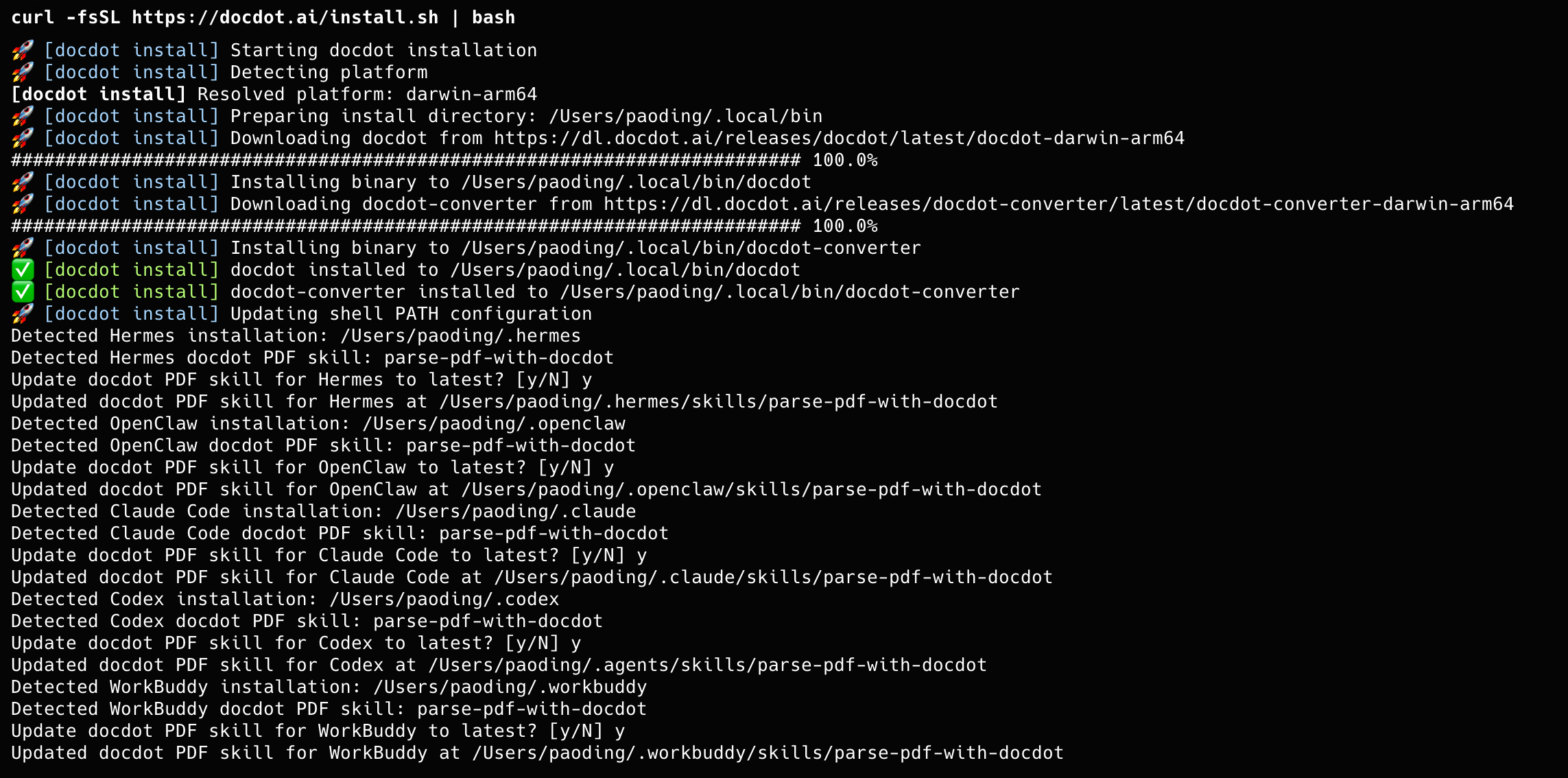
As prompted in the terminal, you may need to run source ~/.docdot/env manually to apply the PATH configuration.
To confirm that DocDot is installed correctly, print the version:
docdot --version

If you see a version number, the installation works. If instead you see command not found, open a new Terminal window and run the install command.
Configure a Provider
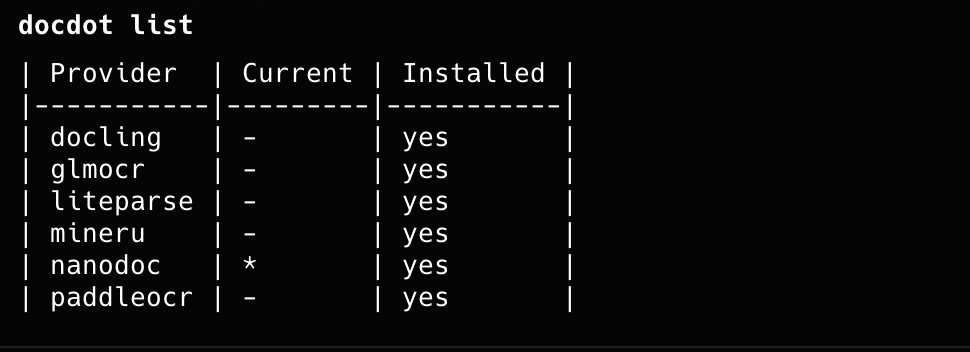
A provider is the engine that reads the PDF. DocDot comes with several pre-installed providers. You can list them, inspect versions, switch the default provider, or install more.
View available providers:
docdot list
Install and set the default provider:
The list shows all the providers that DocDot supports. Install one provider and choose it before parsing. A version suffix is optional.
docdot install <provider>

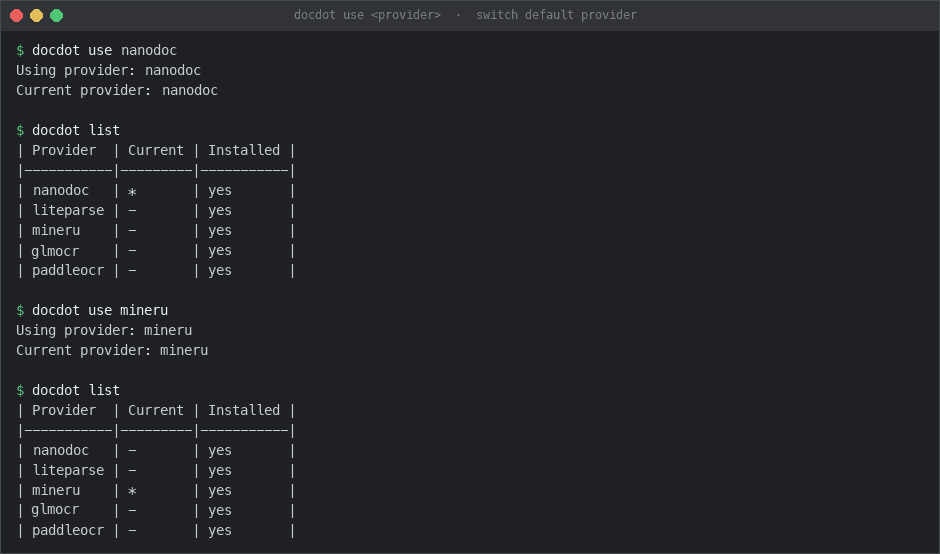
The default provider is used automatically when you parse a PDF. Set it with docdot use and confirm it with docdot list. The active provider is marked with an asterisk.
docdot use <provider>
Provider quality, hardware requirements, and availability differ by provider as shown by local docdot list output, this guide does not assume any specific provider is installed.
Parse Your First PDF
To convert sample.pdf to Markdown in the same folder, pass an input file -i and an output directory -o.
docdot -i ./sample.pdf -o ./output --format markdown

DocDot writes the result to .output. If you see a parsed output file there, the installation, provider selection, and conversion workflow all worked.
Web UI Visual Interface
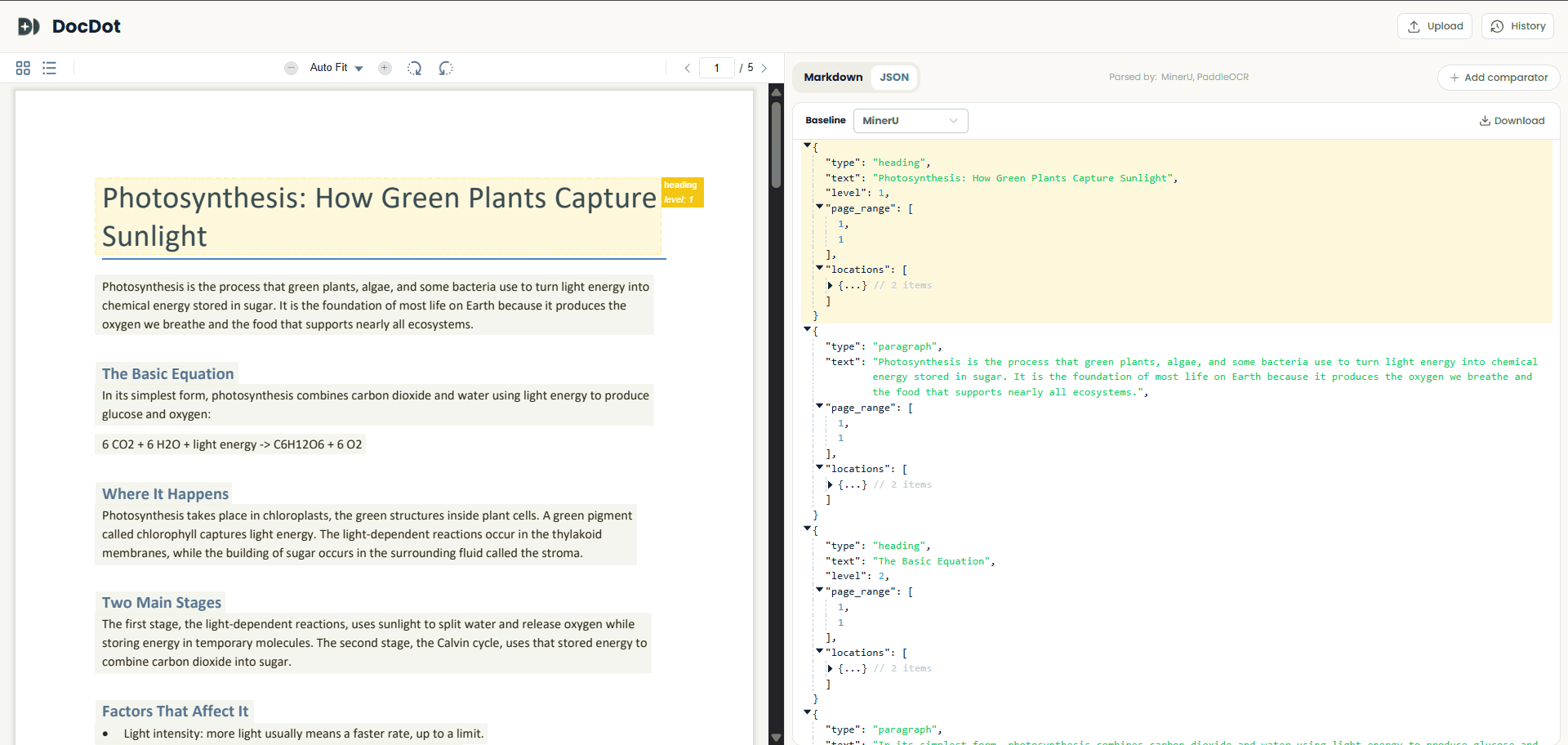
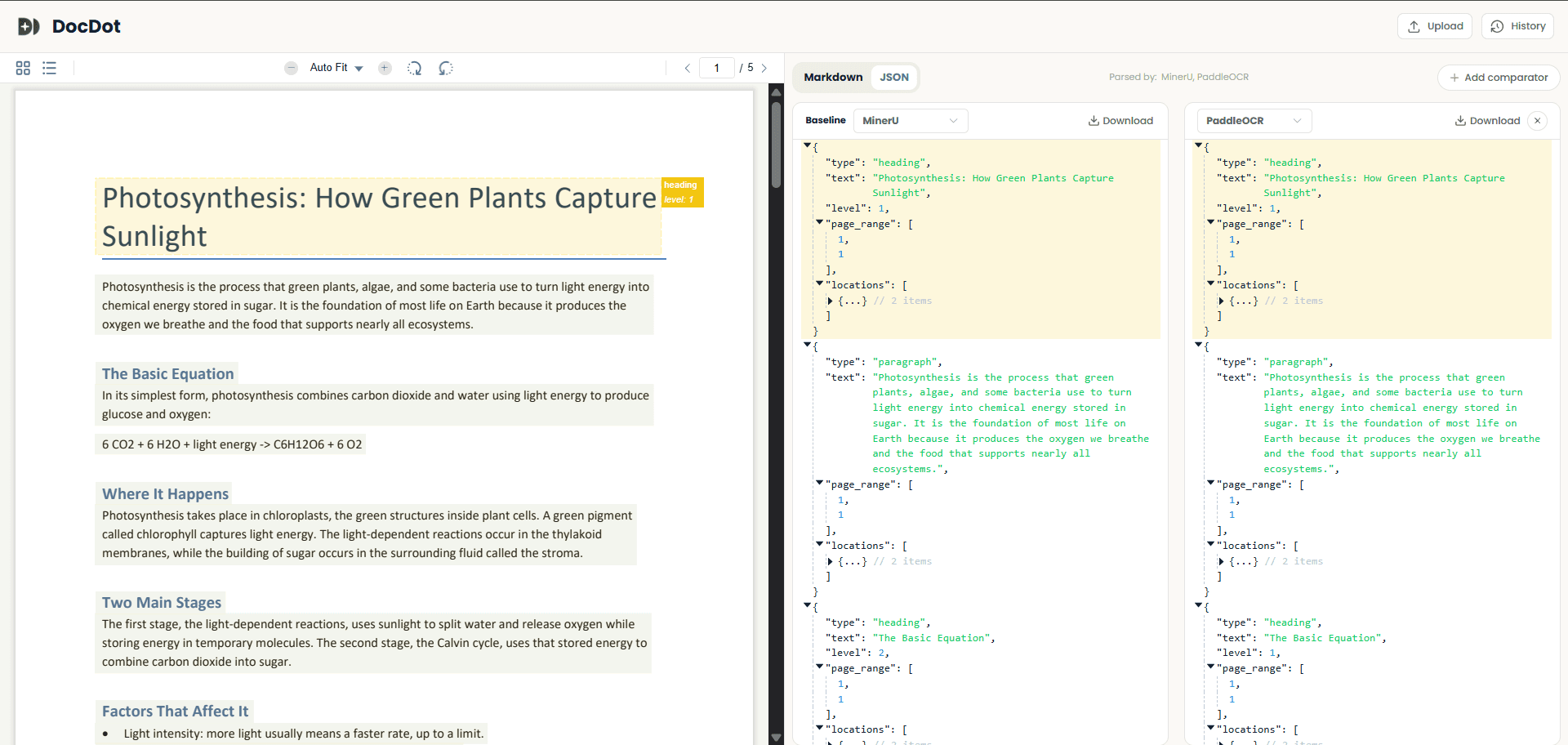
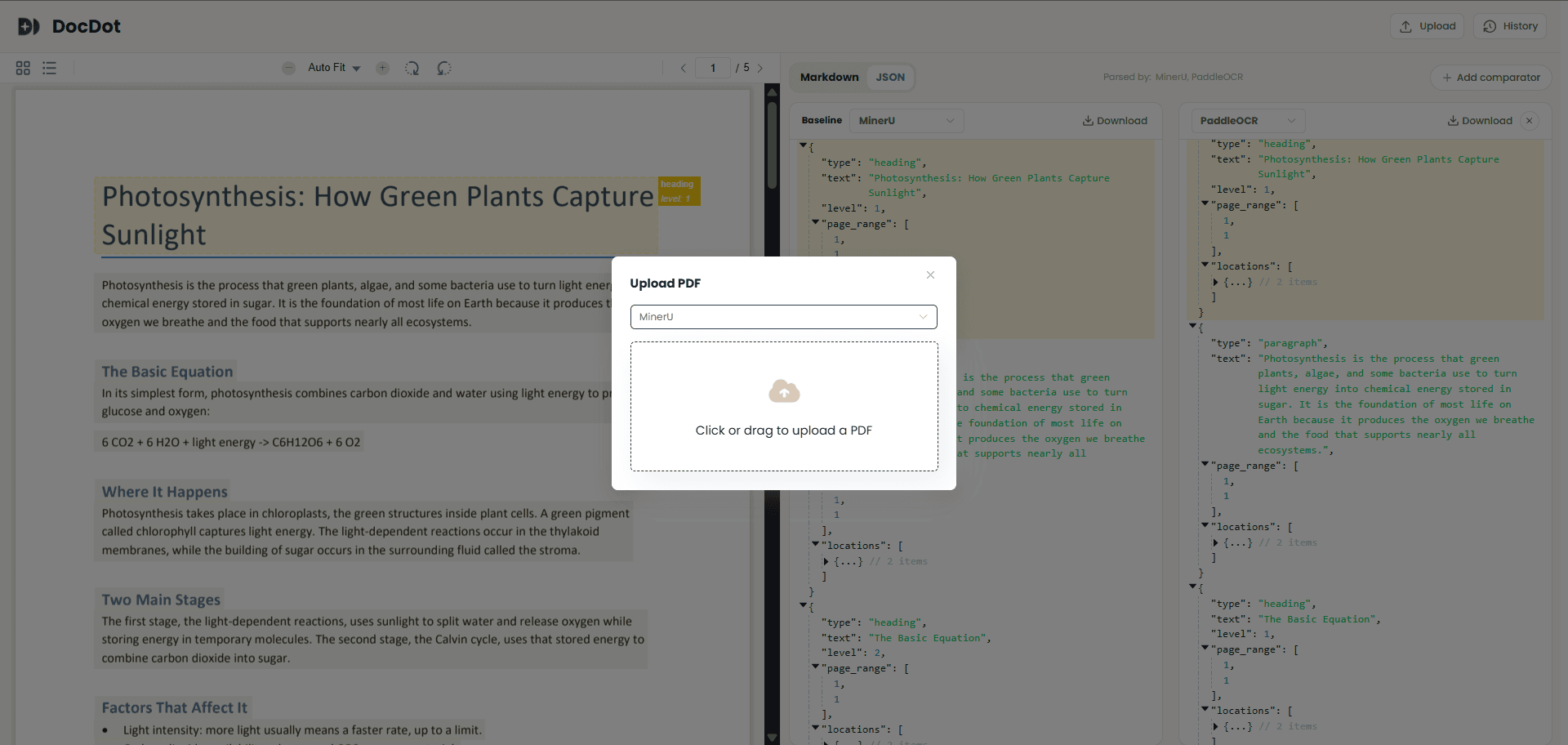
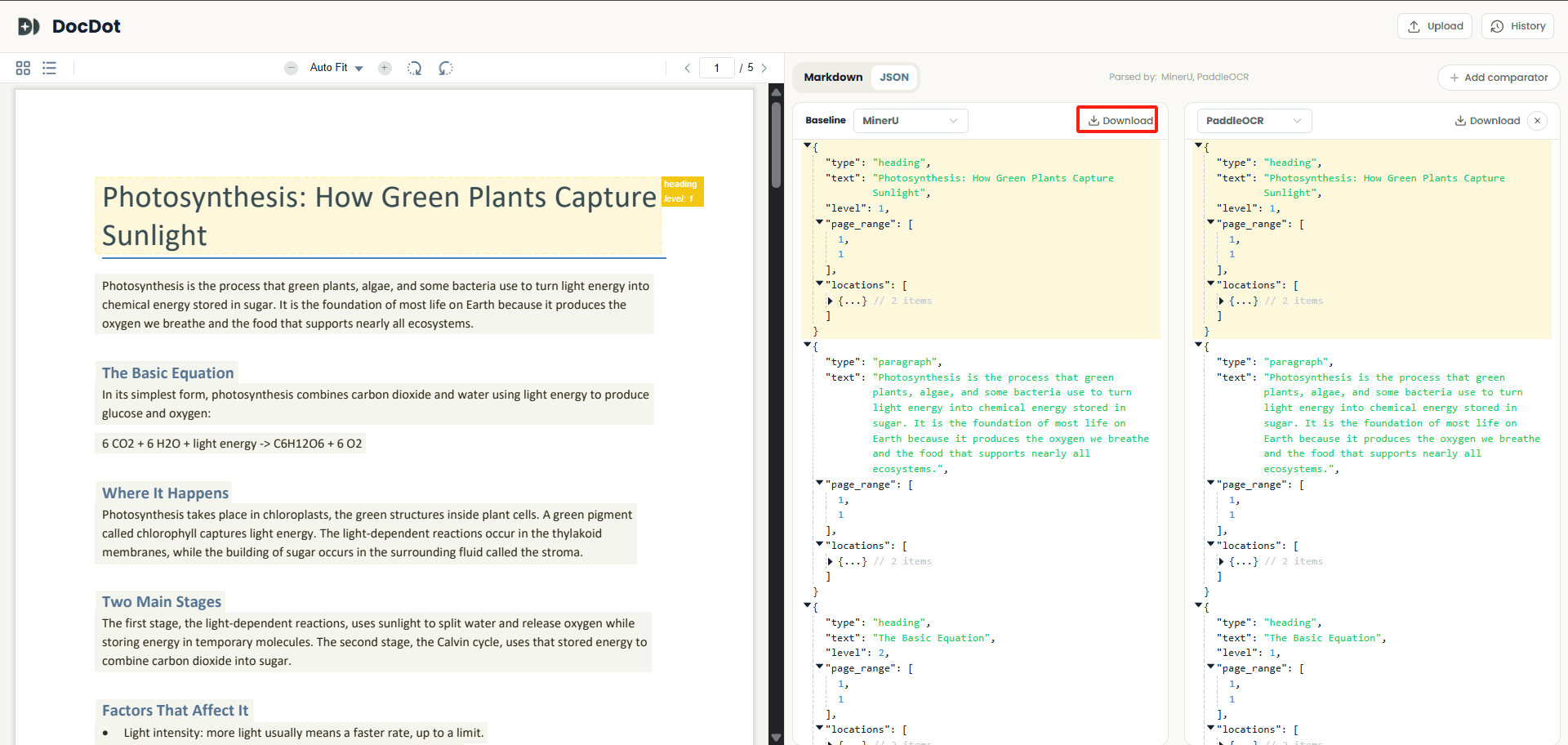
If you prefer to upload, inspect, compare, and download parsing results visually in a browser, start the Web UI:
docdot web
This will open http://127.0.0.1:8173 in your default browser.
Key Features:
-
Inspect and Compare: Switch between Markdown and JSON views. You can add a comparator to see how different providers parse the same document side-by-side.
-
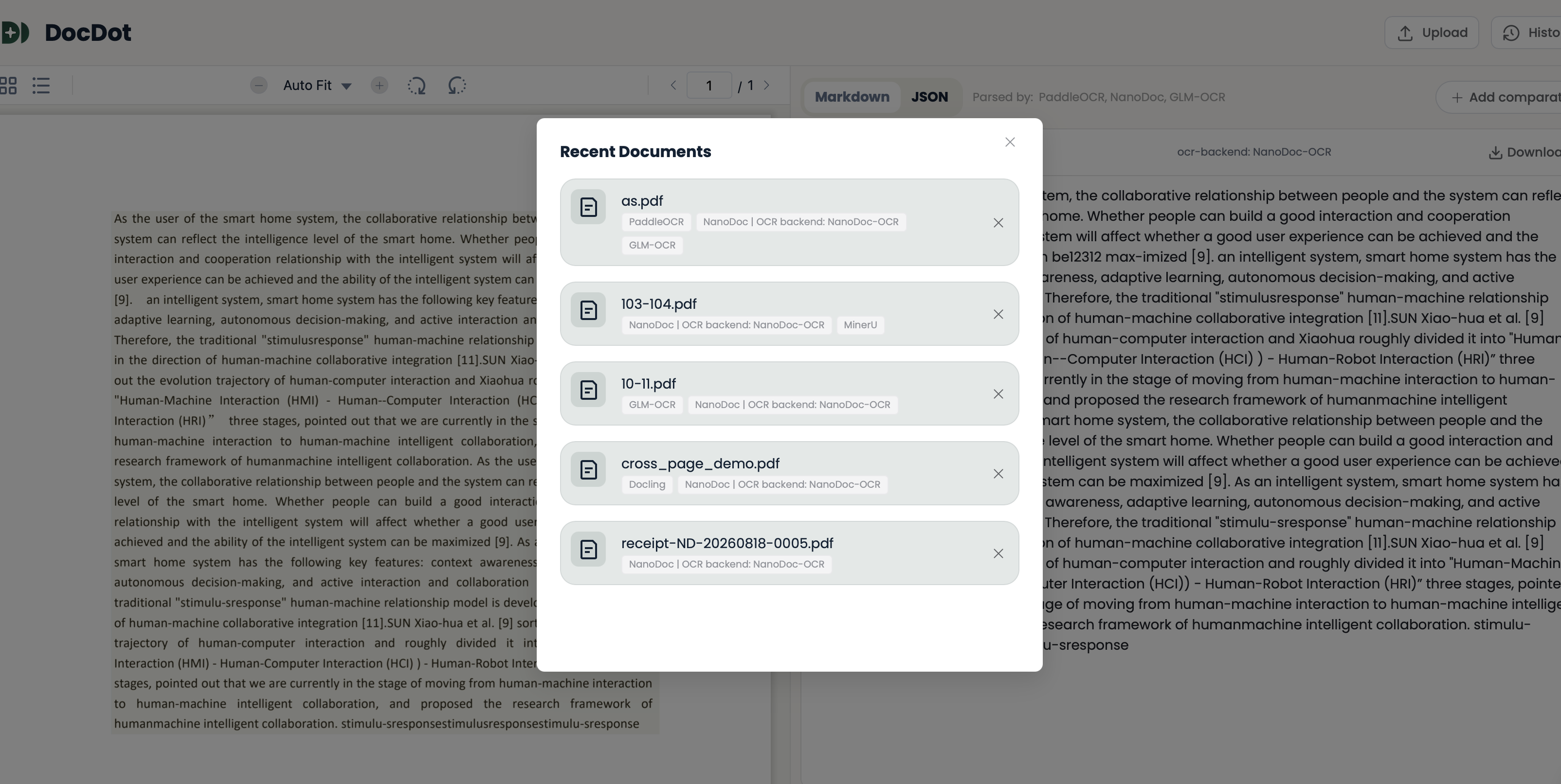
History & Download: Use History to view documents in the current Web UI cache, and click Download to save the result currently shown in the active panel.
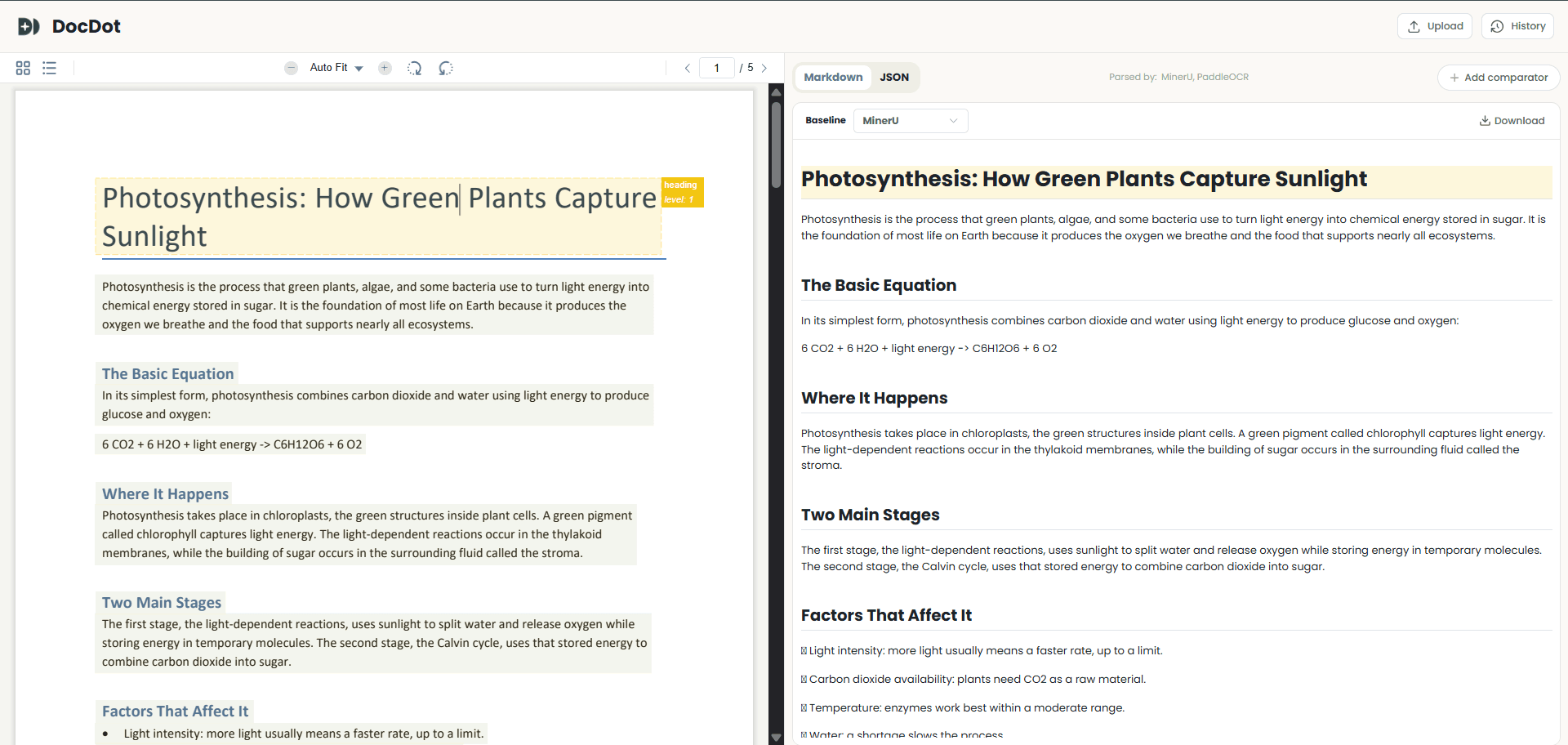
The default address is 127.0.0.1:8173. Keep the Terminal window open while using the Web UI and press Ctrl+C in that window to stop it. The current Web UI cache is cleared when the Web server stops.
Choose an Output Format
| Need | Command |
|---|---|
| Parse with the provider default | docdot -i ./report.pdf -o ./report_out |
| Request Markdown output | docdot -i ./report.pdf -o ./report_out --format markdown |
| Request JSON output | docdot -i ./report.pdf -o ./report_out --format json |
The CLI accepts default, markdown, and json as --format values. The default value is default, so omitting --format has the same effect. For providers that support JSON output, the default output includes:
<filename>.md: the normalized Markdown document.content_list.json: the parsed result in DocDot's unified JSON format.images/: extracted image assets from the document.
Use an output folder, not a file path, for --output.
Specify a Provider for One Run
Specify a provider for this command only to keep the saved default unchanged:
docdot -i ./report.pdf -o ./report_out --provider <provider>
Use docdot provider list <provider> to view the available versions for a provider before installing a specific one.
Service Deployment & Agent Integration
DocDot can be run as a single-use command-line tool, a persistent background service, or integrated directly into AI Agent workflows.
Start Local Provider Server
The serve command starts a local provider server — a small HTTP service that keeps the PDF engine loaded in memory. Once it is running, later parses reuse the loaded model, which makes repeated conversions much faster. Without serve, each docdot -i call starts the model from scratch (a cold model load for every conversion). Use serve when you expect to parse a batch of PDFs in one session, or when another local program needs to call DocDot through its local API.
docdot serve start
docdot serve status
docdot serve stop
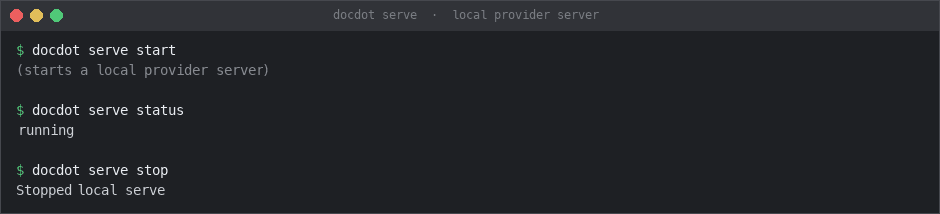
After the local server starts, standard parsing commands are available for PDF processing, and the system will automatically select the correct server.
| Need | Command |
|---|---|
| Parse with the provider default | docdot -i ./report.pdf -o ./report_out |
| Request Markdown output | docdot -i ./report.pdf -o ./report_out --format markdown |
| Request JSON output | docdot -i ./report.pdf -o ./report_out --format json |
docdot serve start accepts an optional backend plus --provider, --host, and --port options.
Connect DocDot to Your Agent
These workflows are separate from normal Terminal or Web UI parsing. You can connect DocDot to an agent in two ways.
Skills — Use Skills when you want DocDot to replace a supported Agent's built-in PDF-reading skill. DocDot is loaded directly into the Agent's runtime, so it runs on the same device with no separate process and no network hop. This is the recommended path when the Agent and DocDot run on the same machine.
MCP — Exposes DocDot as a callable tool over standard MCP protocols (supports local stdio or remote HTTP/SSE). This covers setups where the Agent and DocDot are on different devices.
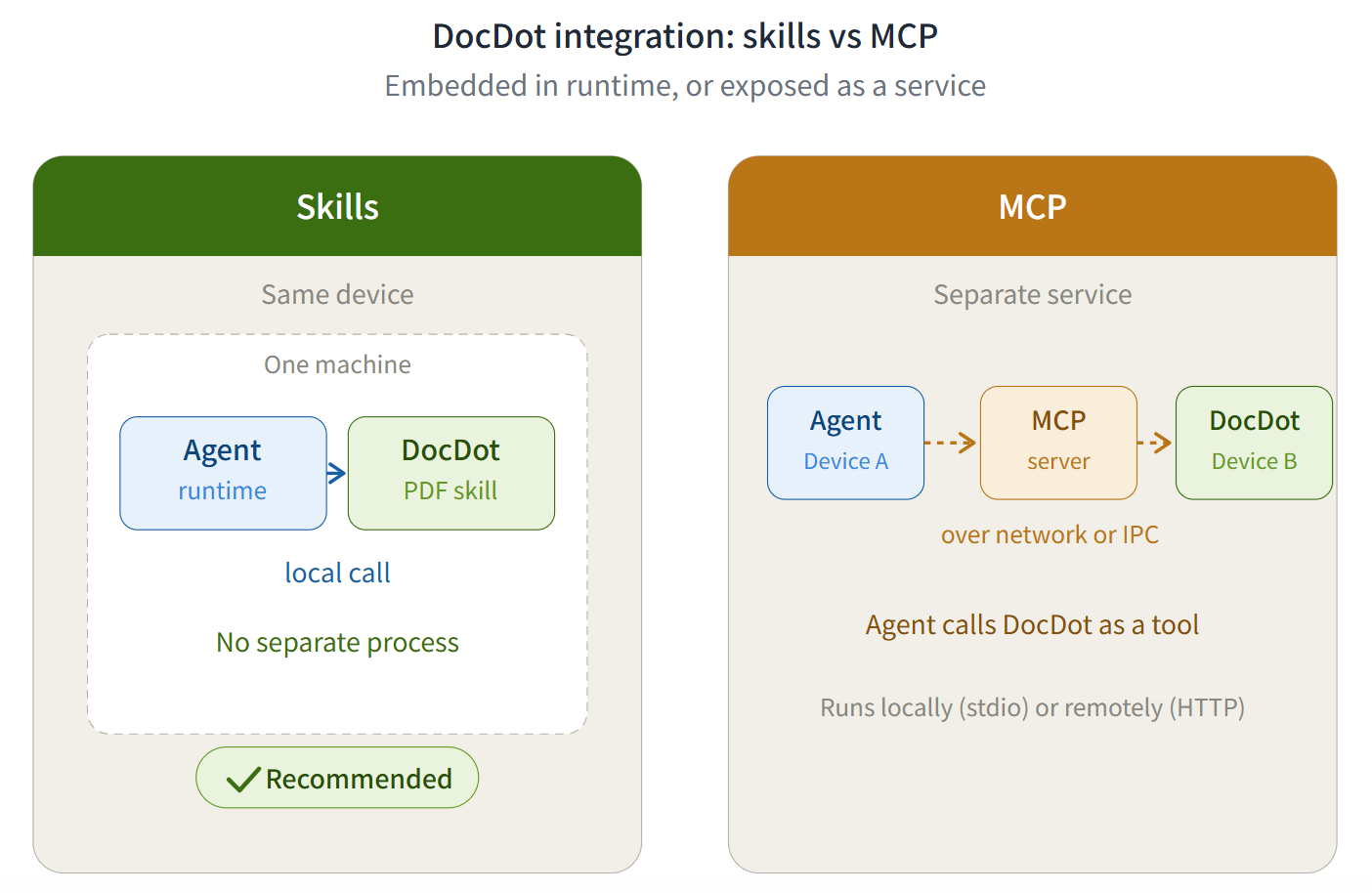
Quick rule: if everything runs on the same machine, prefer Skills. If DocDot runs as a separate service or on another machine, use MCP.
Install Agent Skills
DocDot can detect and replace the PDF skills used by Claude Code, Codex, Hermes, OpenClaw and WorkBuddy. It injects DocDot directly into the Agent's runtime to replace its built-in PDF reading capabilities.
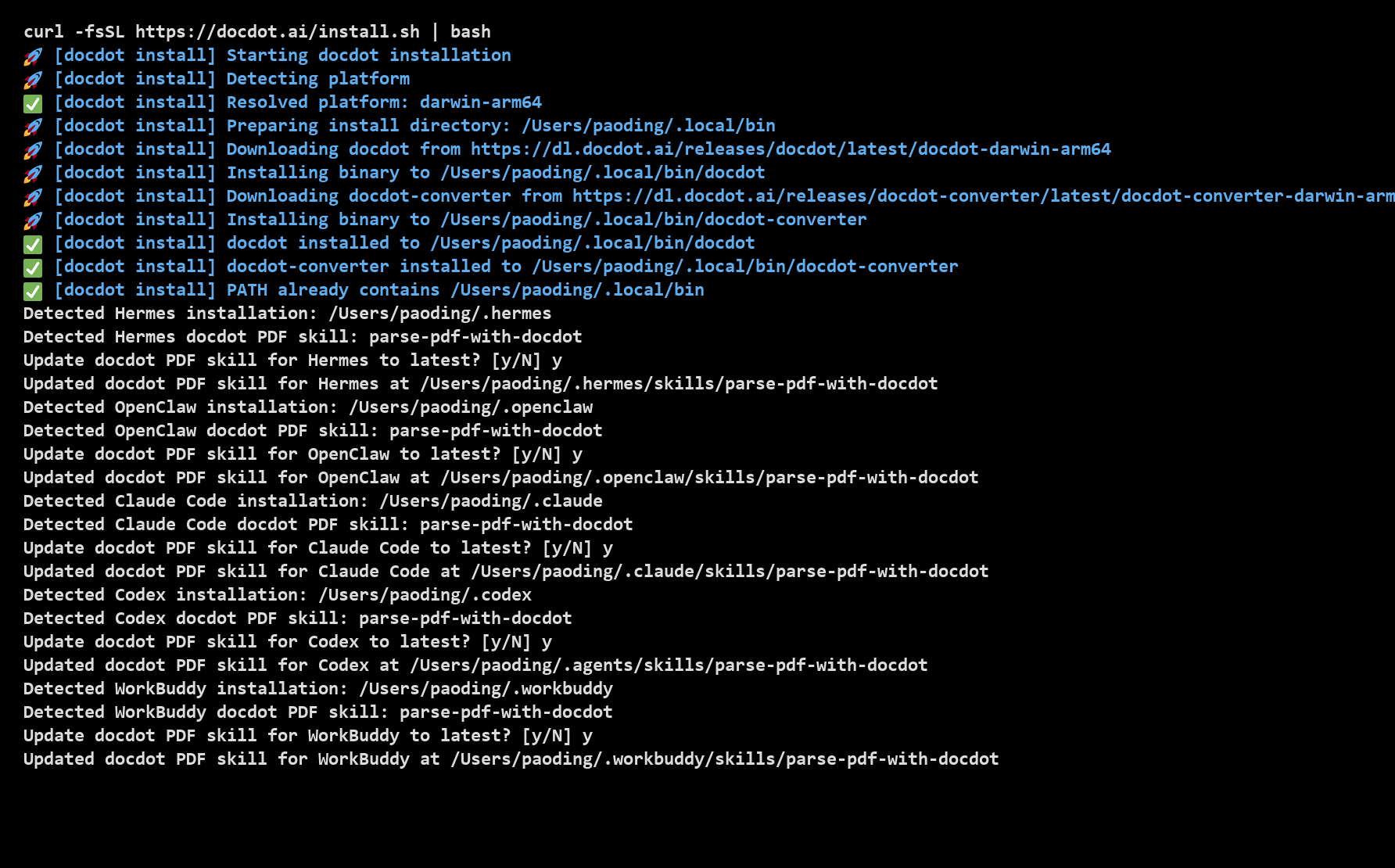
Run the following later when you add a supported agent tool or skip the installer prompt the first time:
docdot skills install
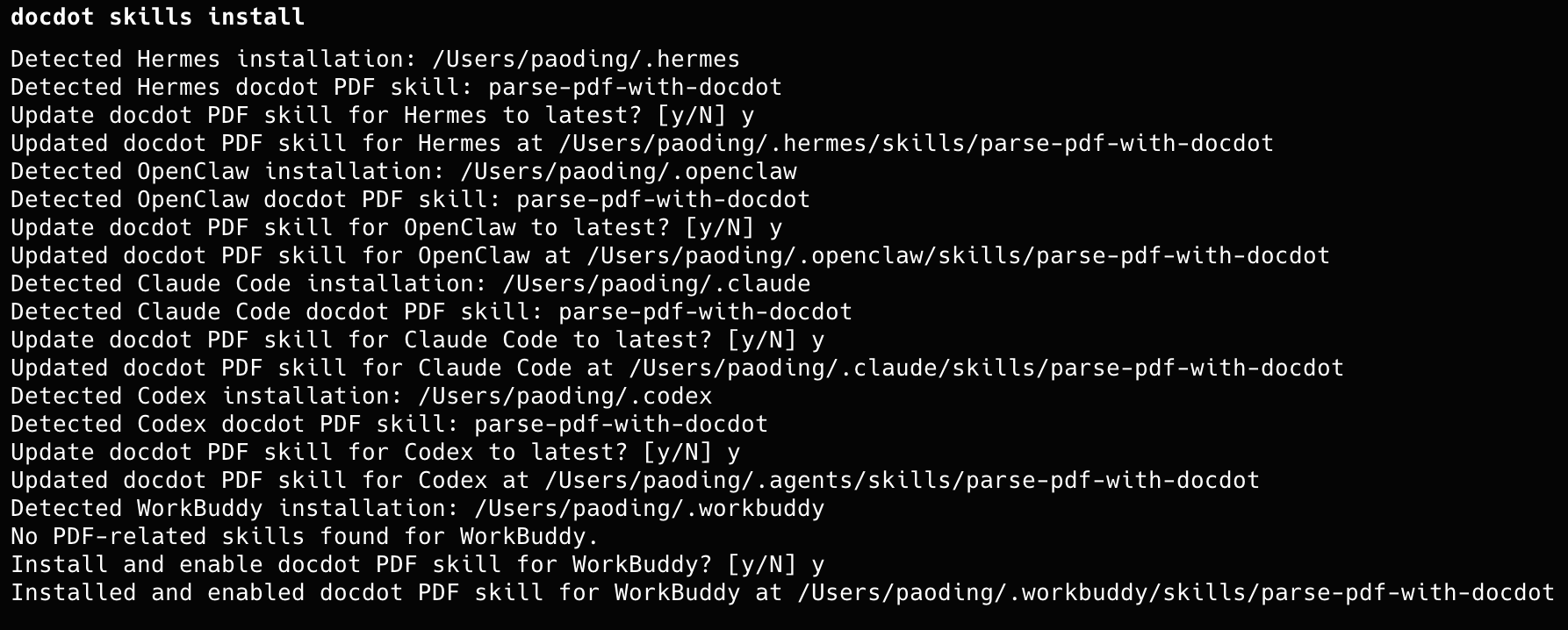
To export the built-in DocDot PDF skill as a ZIP archive for manual installation or sharing:
docdot skills export --output ./parse-pdf-with-docdot.zip

Triggering Skills in Supported Agents:
- Claude Code: Type
/docdotor let Claude load it automatically from the prompt context. - Codex: Prompt naturally. The DocDot Skill can only be used inside Codex Projects. Codex auto‑activates the skill according to the matching‑rules set in
SKILL.md. Please create or select an existing project before use. - Hermes Agent: Run
hermes skills listto check active skills; auto-matched by Hermes Router. - OpenClaw: Skills located in workspace or global
./skillsdirectories are loaded automatically. - WorkBuddy: Skills placed in the workspace
.workbuddy/skillsdirectory or configured in global Skill settings are loaded automatically. Trigger by directly prompting in chat (auto-matched by intent) or using the explicit command/docdot.
For complete usage instructions for the Skills feature, please refer to the official documentation:
- Claude Code: https://code.claude.com/docs/en/skills
- Codex: https://learn.chatgpt.com/docs/customization/overview#skills
- Hermes Agent: https://hermes-agent.nousresearch.com/docs/user-guide/features/skills
- OpenClaw: https://docs.openclaw.ai/tools/skills-config
- WorkBuddy: https://www.workbuddy.ai/docs/workbuddy/From-Beginner-to-Expert-Guide/Function-Description/Skills-Market
Please attempt to restart the Agent tool when Skills fails to work properly.
Run an MCP Server
docdot mcp
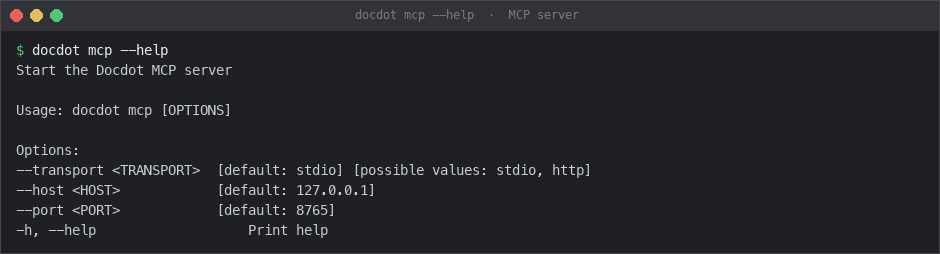
Once the server is running, manage and use it from your target agent tool:
-
Claude Code:
- Run
claude mcp listor type/mcpin your session to check status. - Usage: Prompt naturally without special prefixes (e.g., "Use docdot to extract tables from test.pdf").
- Docs: https://code.claude.com/docs/en/mcp-quickstart
- Run
-
Codex:
- Run
codex mcp listto confirm that the server status is Active. - Usage: Codex automatically detects available tools; prompt it directly in natural language.
- Docs: https://learn.chatgpt.com/docs/customization/overview#mcp
- Run
-
Hermes Agent:
- Run
hermes mcp statusto verify connectivity. - Usage: Send your parsing request in the chat terminal; Hermes will invoke DocDot automatically.
- Docs: https://hermes-agent.nousresearch.com/docs/user-guide/features/mcp
- Run
-
OpenClaw:
- Run
openclaw mcp statusor check the Web UI (/settings/mcp). - Usage: Ask questions directly in the OpenClaw agent session.
- Docs: https://docs.openclaw.ai/cli/mcp
- Run
-
WorkBuddy:
- Check Status: Run
workbuddy mcp statusor verify connected servers in the MCP panel. - Usage: Prompt naturally in chat (e.g., "Use docdot to extract tables from test.pdf").
- Docs: https://www.workbuddy.ai/docs/workbuddy/From-Beginner-to-Expert-Guide/Function-Description/MCP-Guide
- Check Status: Run
The default transport is stdio. For an HTTP MCP server, use --transport http; its default address is 127.0.0.1:8765. Expose it beyond the local machine only on a trusted network.
Update DocDot
docdot update

docdot --version
Check the version after the updater completes.
Reference and Troubleshooting
Command-Line Parameters
This section details all core parameters and configurations for the DocDot CLI. You can always run docdot --help in your terminal to get the complete built-in help information.
docdot --help
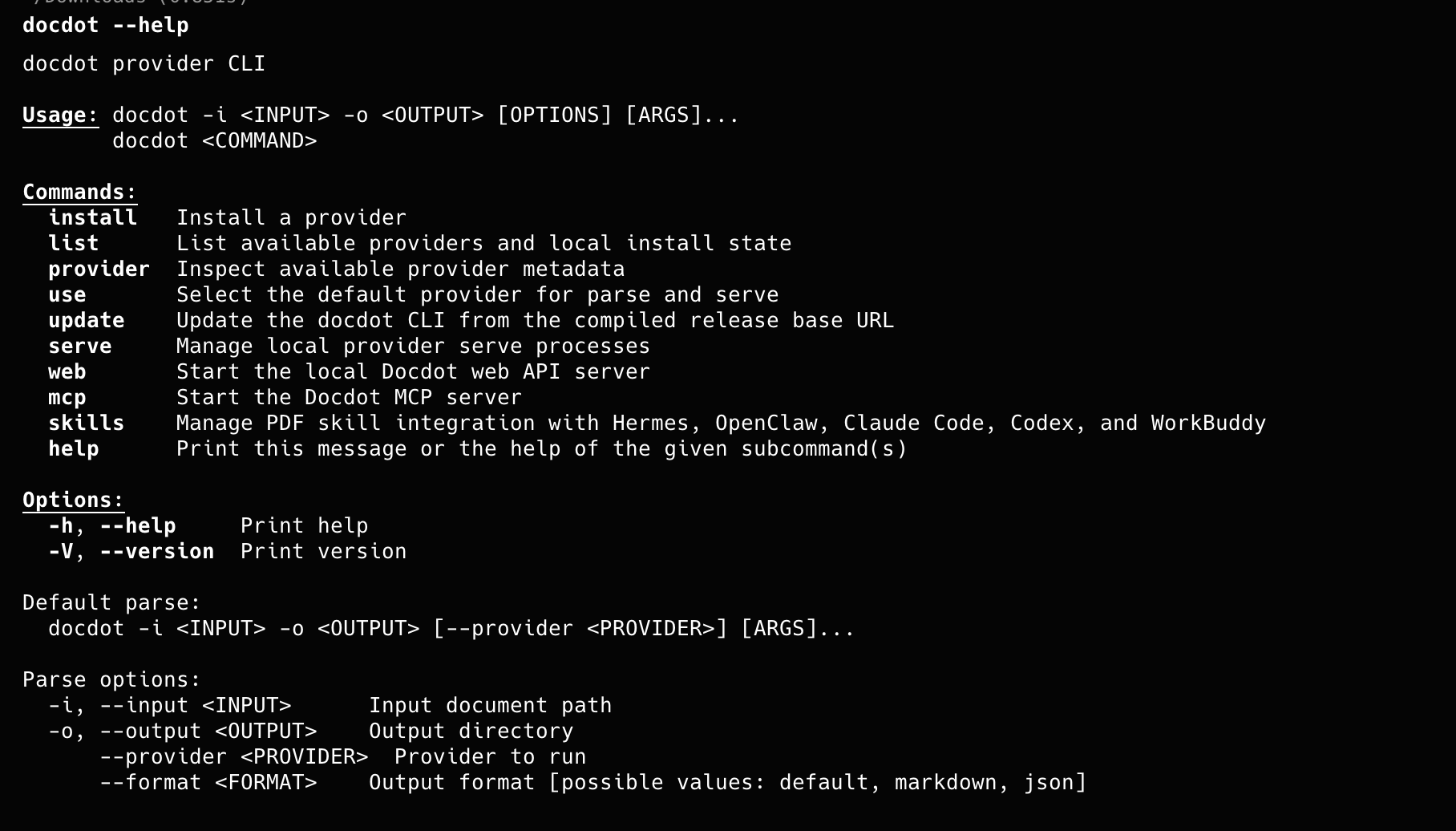
Installation & Core Utilities
Commands for setting up, updating, and verifying your DocDot installation.
| Command / Option | Description |
|---|---|
curl -fsSL https://docdot.ai/install.sh | Install DocDot |
docdot -h, docdot --help | Print the full command list and syntax help for the current context. |
docdot --version | Output the currently installed DocDot version number. |
docdot update | Check the remote repository and update the CLI to the latest release. |
Provider Management
Commands to install, inspect, and configure the local PDF parsing engines.
| Command Syntax | Description | Example |
|---|---|---|
docdot list | List all supported providers and show local installation status. The active default is marked with an asterisk (*). | docdot list |
docdot provider list <provider> | View all available versions for a specific provider before installation. | docdot provider list mineru |
docdot install <provider> | Download and configure a specific provider model. Accepts an optional version suffix. | docdot install mineru |
docdot use <provider> | Switch the global default parsing engine. Subsequent single-file parses will default to this selection. | docdot use mineru |
Parsing Operations
Standard commands for converting individual PDF files. The base syntax requires an input file and an output directory.
| Parameter / Flag | Type/Options | Required | Default | Description |
|---|---|---|---|---|
-i, --input | String | Yes | - | Path to the target local PDF file. |
-o, --output | String | Yes | - | Destination directory for parsed assets. Must be a folder, not a file path. |
--format | default, markdown, json | No | default | Determines the output structure. The json or default flag generates a normalized .md document, a content_list.json data file, and an images/ directory. |
--provider | String | No | System Default | Overrides the active provider for a single run without altering the global default configuration. |
Service & Web UI Deployment
Commands for managing background processes, keeping models in memory, and launching the visual interface.
| Command | Options | Default Values | Description |
|---|---|---|---|
docdot serve start | - | - | Start a provider serve process to keep the model loaded in memory. |
docdot serve stop | - | - | Stop a running provider serve process. |
docdot serve status | - | - | Show the current provider serve status. |
docdot serve logs | - | - | Print the runtime logs of the provider serve process. |
docdot serve help | - | - | Print help information for the serve command. |
docdot web | --host <HOST>--port <PORT>--provider <PROVIDER>-h, --help | --host 127.0.0.1--port 8173 | Launch the browser-based Web UI for visual parsing and side-by-side engine comparisons. |
Agent Connectivity (Skills & MCP)
Commands for linking DocDot directly into local AI Agent environments.
| Command | Options | Default Values | Description |
|---|---|---|---|
docdot skills install | - | - | Inject DocDot into supported local Agents (Claude Code, Codex, Hermes, OpenClaw and WorkBuddy) to replace their native PDF-reading logic. |
docdot skills export | --output <OUTPUT> | - | Export the built-in DocDot PDF skill as a ZIP archive. |
docdot mcp | --transport <TRANSPORT>--host <HOST>--port <PORT>-h, --help | --transport stdio--host 127.0.0.1--port 8765 | Start a Model Context Protocol (MCP) server. The --transport option accepts stdio or http. |
Troubleshooting
| What you see | What to do |
|---|---|
docdot: command not found | Open a new Terminal window, then run the installer again. |
| No provider is ready | Run docdot list, then install and select a provider. |
| No output after parsing | Confirm -i points to a PDF and -o names a writable folder. |
| A local service will not start | docdot serve status show the provider state. |
| Need another command or option | Run docdot --help. |